
Browser Compatibility Issues and How to Fix Them Fast
By Arthur Falcone · Founder of Arlo
At 11:47 p.m., a customer reaches checkout on an iPhone, taps the payment button, and nothing happens. The same order completes in Chrome on your laptop. Shopify admin looks healthy, your theme preview looks fine, and there's no obvious outage to investigate. Meanwhile, a valuable segment of your traffic is abandoning a purchase because one browser handles a script, layout rule, payment element, or device capability differently.
That's the uncomfortable reality of browser compatibility issues on ecommerce stores. You don't need to test every possible environment with equal effort. You need to find the combinations that put revenue at risk, reproduce the failure, fix the buying path first, and keep enhanced features from blocking customers who can't use them.
#Table of Contents
- Why Browser Compatibility Still Breaks Ecommerce Sales
- Know Your Real Browser Mix Before You Test Anything
- The Most Common Root Causes on Shopify Stores
- How to Reproduce and Diagnose Issues Without Guesswork
- Fixing What Matters Most With Progressive Enhancement
- Prioritize Prevent and Keep Compatibility From Costing You Again
#Why Browser Compatibility Still Breaks Ecommerce Sales
A checkout can fail without looking broken to the store owner. A buyer may see a disabled button, a payment widget that never loads, a discount field that will not expand, or a product gallery caught in a scroll loop. They do not open DevTools or report the defect. They leave.
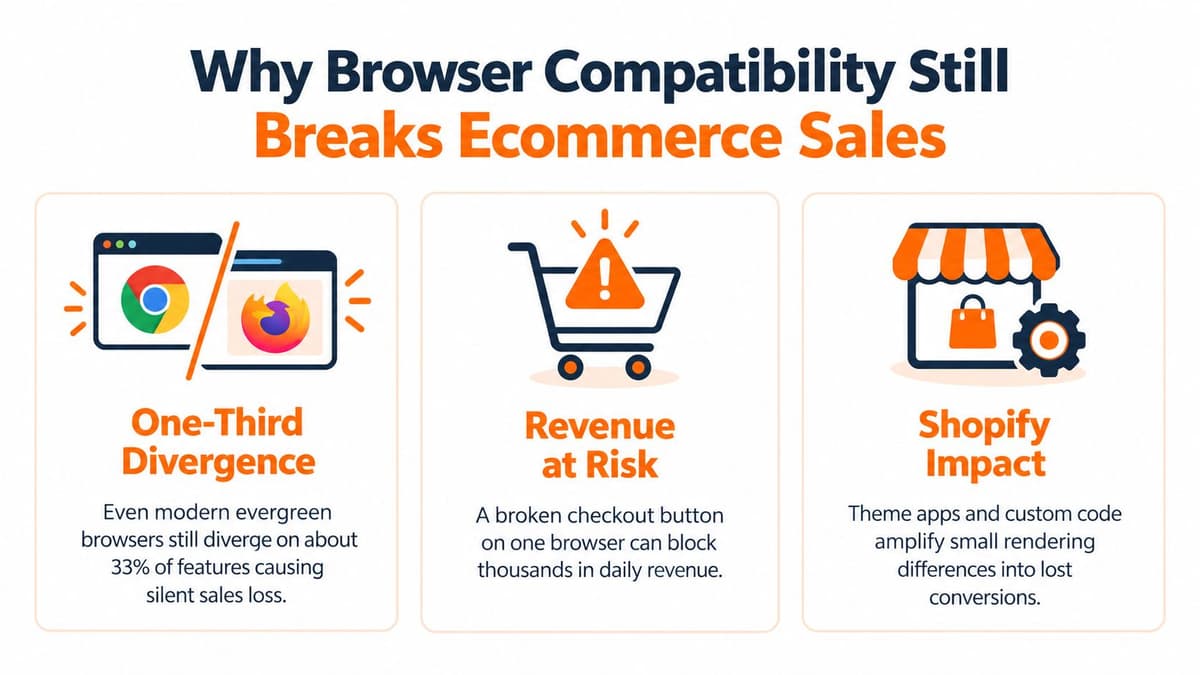
That makes compatibility a revenue problem, not merely a developer inconvenience. Mozilla's 2020 Browser Compatibility Report found that only 44% of respondents were satisfied or very satisfied with browser compatibility, compared with roughly 75% satisfaction for the web overall. Internet Explorer was selected as a compatibility pain point by 70% of respondents. Safari was cited by 50% on mobile and 46% on desktop, while 24% specifically named Internet Explorer and 20% pointed to layout and styling.
The browser names are less useful than the pattern behind them. Failures come from legacy support requirements and differences in how browser engines interpret standards. A Shopify theme may look correct in the founder's browser while a customer encounters a broken interaction, missing control, or unusable payment step elsewhere.
#Evergreen browsers reduced fragmentation, not risk
Auto-updating browsers reduced the number of long-lived versions that teams had to support. A government comparison summarized by TestDino's browser compatibility analysis still found that only 66% of web features are fully supported across all browsers. Modern browsers can agree on the basics while differing on the feature behind a sticky add-to-cart, address validation, animation, or device connection.
Historical browser timelines identify 2012 as a turning point, when Chrome 20+, Firefox 13+, Internet Explorer 10, and Safari 6 made core HTML5, CSS2.1, and major CSS3 features broadly consistent enough for mainstream use. That reduced the need for many hacks, but it did not make newer APIs, mobile behavior, or third-party scripts uniform.
For a Shopify founder, triage starts with three questions:
- How much revenue uses the affected environment?
- How close is the failure to purchase completion?
- Can customers still complete the core action without the enhancement?
Repair checkout, cart, product selection, and payment failures before polishing a browser-specific visual detail. A technically complete store still loses sales if customers cannot buy.
#Know Your Real Browser Mix Before You Test Anything
Testing every browser and device with equal attention sounds responsible, but it can waste time and still miss your highest-value failure. Your store's own traffic should define the first testing matrix. Global market share is useful context, but sessions, orders, and revenue by browser and viewport tell you where an actual Shopify fix will matter.
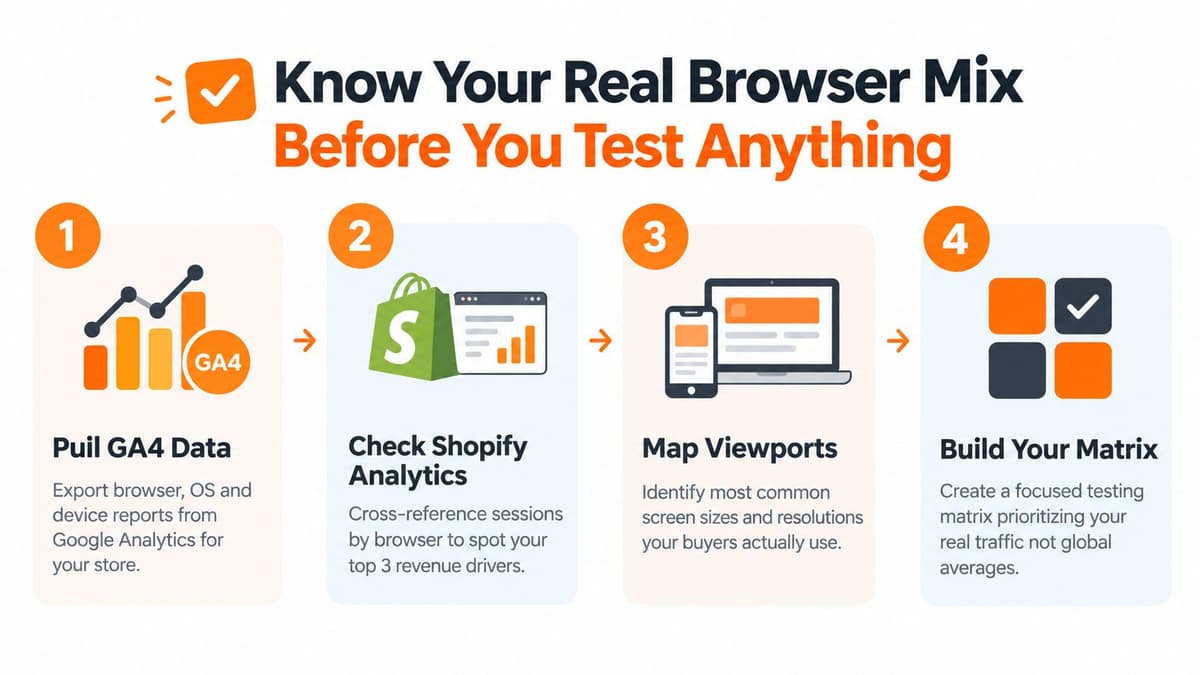
Start with analytics, not assumptions. A Practical Ecommerce guide to identifying browsers, operating systems, and screen resolutions recommends using an analytics package such as Google Analytics to understand the environments your visitors use.
#Build a revenue-weighted matrix
Use this workflow:
-
Pull browser and device data. In GA4, review technology reports for browser, operating system, device category, and screen resolution. Export the useful breakdown rather than relying only on a top-line browser chart. Shopify analytics can provide a second view of store traffic and orders.
-
Cross-reference the commercial outcome. Rank combinations by orders and revenue, not just sessions. A browser with fewer visits may deserve priority if its buyers purchase at a stronger rate or place larger orders. Compare conversion behavior for Safari on iPhone, Chrome on Android, Chrome desktop, Firefox desktop, and other meaningful segments in your data.
-
Map the viewport. Browser brand alone isn't enough. A desktop browser at a wide viewport can pass while the same browser at a narrow viewport hides navigation, clips a quantity selector, or pushes the checkout action below an overlay. Record screen resolutions and device categories alongside the browser.
-
Create a focused matrix. Select the combinations that cover your important revenue and purchase paths, then add a small number of strategic engine checks. The exact matrix will vary by store. A US-heavy mobile brand may need deeper WebKit coverage, while a desktop-heavy catalog may prioritize Chromium and Firefox layouts.
The Arlo analytics in ecommerce guide is also relevant here because browser data becomes useful only when it's connected to sales, traffic quality, and action priority.
Practical rule: Test the environments where customers spend money, then test the environments where your code is most likely to diverge.
#Export this list this week
Ask whoever owns analytics to produce a simple table with browser, operating system, device, viewport, sessions, orders, revenue, and conversion rate. Sort it by revenue first, then flag any segment with a visible conversion gap or unusual checkout abandonment.
Save the result as the release checklist for your theme, checkout extension, and major app changes. When the traffic mix changes, update the matrix. Don't let an old assumption decide what gets tested.
#The Most Common Root Causes on Shopify Stores
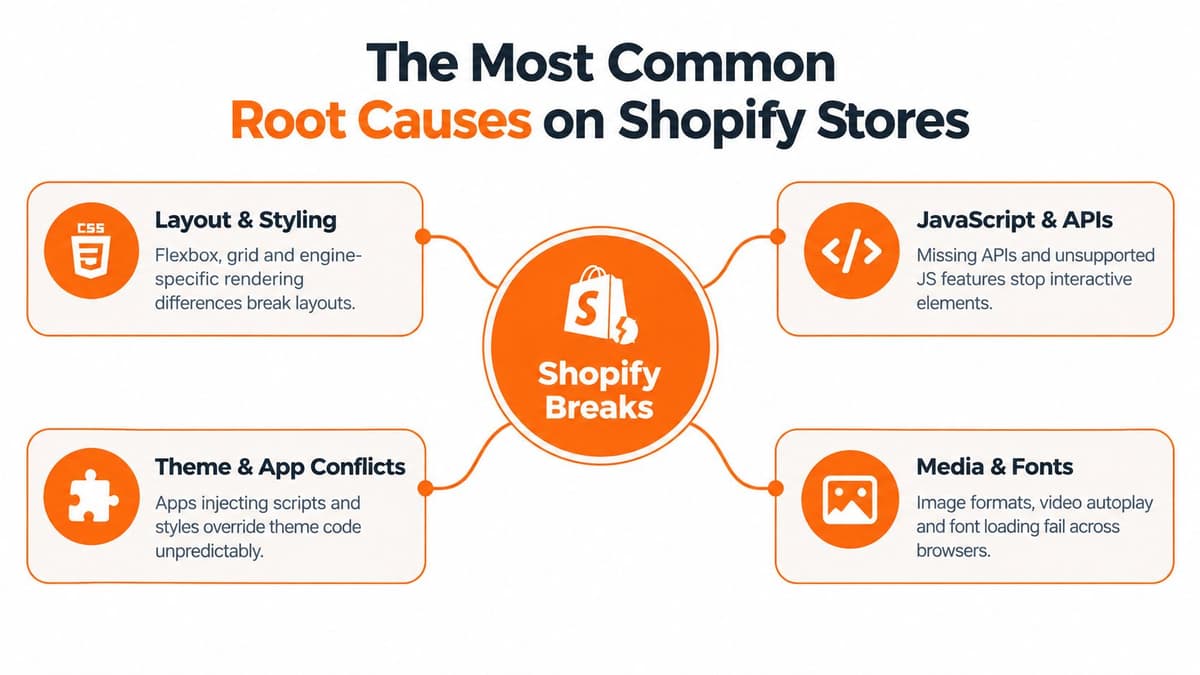
Most Shopify compatibility failures belong to a small number of cause families. Identifying the family first prevents a common mistake, treating every visible defect as a random CSS problem.
A product page that collapses on iOS may involve viewport behavior, a sticky element, an app-injected style, or JavaScript that never completed initialization. The visible symptom is the end of the chain, not necessarily the root cause.
#Layout and styling differences
CSS can produce different results across Blink, WebKit, and Gecko even when the declarations look reasonable. Flexbox sizing, grid placement, overflow behavior, sticky positioning, font metrics, and viewport units can all affect whether an element fits.
On a Shopify store, that might appear as a product title overlapping the price, a sticky add-to-cart bar covering the quantity selector, or a mobile menu extending beyond the screen. A font that loads differently can also change line breaks and push a purchase button lower than expected.
Start by checking computed styles and the box model in the failing browser. Look for fixed heights, absolute positioning, overflow rules, and assumptions about available width. If a layout rule is decorative rather than essential, simplify it before adding a browser-specific override.
#JavaScript and API gaps
Interactive failures often come from unsupported or differently implemented browser capabilities. A script may assume an API exists, fail during initialization, and leave the page looking intact while the interaction is dead.
The Web Serial API browser support reference illustrates the broader issue. Web Serial works in Chromium-based desktop browsers, but Safari, stable Firefox, Samsung Internet, and most mobile browsers don't support it. The same source estimates overall support at about 72% and notes that Chrome on Android only began beta support in April 2026, so teams building connected-device, kiosk, diagnostic, or PWA-style workflows need a fallback instead of assuming universal capability.
For ecommerce, the equivalent failure may involve payment UI, advanced product customization, camera access, or a browser API used by an app. Check the console, identify the first thrown error, and verify support before rewriting the entire component.
#Theme and app conflicts
Shopify themes and apps frequently share the same page. An app can inject a script before your theme finishes loading, override a class, attach an event listener to a replaced element, or introduce a CSS rule with unexpected specificity.
This is why a bug may disappear in a clean theme preview but return on the live storefront. Compare the failing page with app embeds disabled in a safe duplicate theme. Disable one change at a time, and preserve the exact browser and viewport that exposed the problem.
#Media, fonts, and standards drift
Images, video, and fonts create another category of quiet failures. A media format may not decode, autoplay may be restricted, or a font may arrive late and change the layout after the first render. A product video that works on desktop can become an empty block or a manual-play experience on mobile.
Markup drift adds maintenance risk. Opera's web compatibility report found that the average page deviated from W3C markup specifications 47 times, and only 4.13% of 3.5 million pages were fully standards-compliant, as reported by Computerworld's coverage of the findings. Validate critical templates, inspect malformed markup, and treat standards checks as ongoing maintenance rather than a one-time cleanup.
#How to Reproduce and Diagnose Issues Without Guesswork
A developer can't fix “Safari checkout is weird.” They can fix a defined sequence that fails on a named browser, viewport, account state, and page.
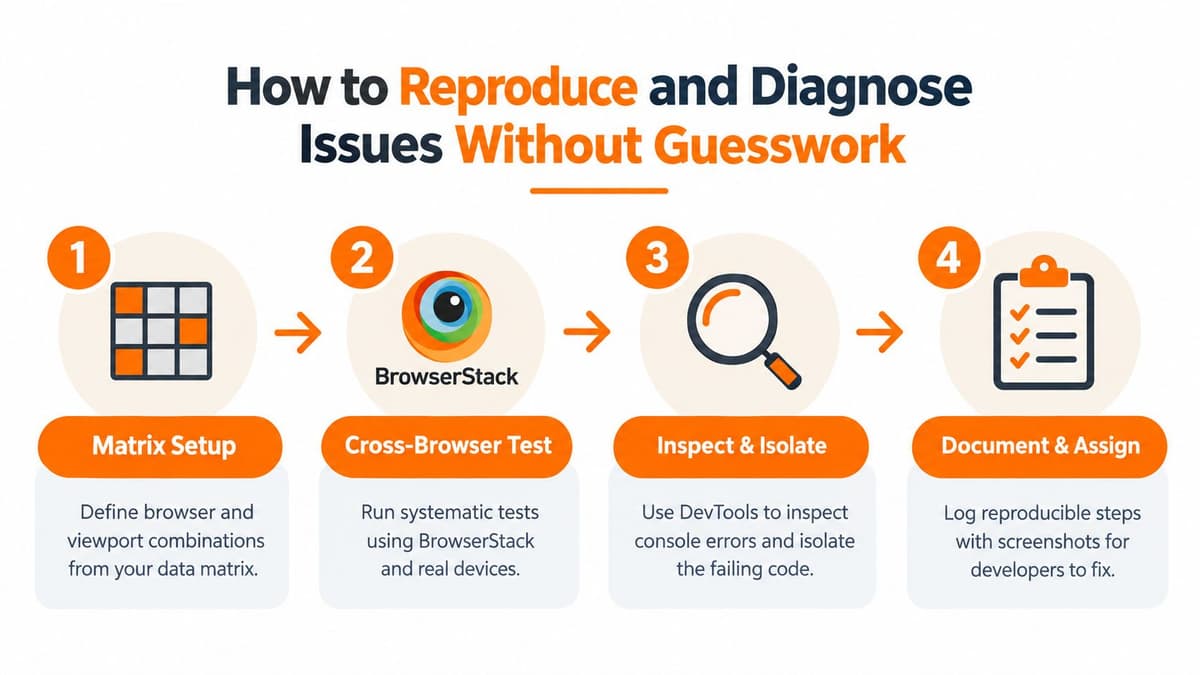
Use a matrix-driven process. Applitools' modern cross-browser testing report compiled 3,112 hours of testing across 21 browser and viewport combinations for a modern responsive ecommerce app. The useful lesson is that browser coverage and viewport coverage are separate dimensions. Testing one Chrome viewport doesn't validate Chrome across the screens your buyers use.
#Set up the reproduction
Write the test before opening a ticket:
- Environment: Browser, browser version if available, operating system, device category, and viewport.
- Path: Landing page, product page, cart, checkout, account, or post-purchase flow.
- State: Logged in or logged out, discount applied, subscription selected, inventory status, and consent choices.
- Action: Exact taps or clicks, in order.
- Expected result: What should happen.
- Observed result: What happens instead.
- Evidence: Screenshot, screen recording, console output, and network failure.
Keep the first reproduction as small as possible. If the problem occurs after opening a variant selector, don't report the entire product journey. Record the smallest sequence that consistently creates the defect.
BrowserStack, LambdaTest, and a native device lab can help with real browser and device combinations. Playwright can provide a repeatable engine-level baseline for Chromium, WebKit, and Firefox, but automated coverage shouldn't replace a real-device check for touch behavior, mobile viewport changes, payment prompts, or keyboard interactions.
#Isolate the failing layer
Open DevTools in the failing environment and work from the earliest failure:
- Console: Capture JavaScript exceptions, failed feature checks, and warnings that correlate with the broken action.
- Network: Check whether a script, stylesheet, font, image, or payment resource failed, was blocked, or returned an unexpected response.
- Elements and computed styles: Compare the failing element with a working browser. Look for different dimensions, inherited styles, stacking contexts, and overflow.
- Event behavior: Confirm that the button has the expected listener and that another overlay isn't intercepting the click.
- App isolation: Test a duplicate theme with suspicious app embeds removed, then restore them individually.
Use visual comparison for layout shifts, but don't stop at screenshots. Two pages can look identical while one has a missing click handler or a feature that failed.
A structured logging approach makes patterns visible. The MDN browser compatibility study methodology began with a survey, followed with interviews of 13 volunteers, manually coded free-text responses into 46 categories, and consolidated them into 12 larger groups. You can borrow the principle without copying the research design: use consistent labels for browser, viewport, root cause, severity, and status.
The statistical significance guide can help when you're comparing browser segments, but don't wait for statistical certainty to fix a checkout button that visibly fails. Evidence thresholds should match the risk. A reproducible payment failure deserves immediate action.
Here's a compact issue record:
| Field | Example |
|---|---|
| Browser and viewport | Safari on iPhone, narrow mobile viewport |
| Flow | Product page to cart |
| Failure | Sticky add-to-cart tap does nothing |
| Severity | Checkout-adjacent blocker |
| Evidence | Recording, console error, affected theme version |
| Owner | Theme developer or app vendor |
| Verification | Re-run on the same environment and a control browser |
Use this embedded walkthrough as a practical companion while someone on your team runs the process:
#Fixing What Matters Most With Progressive Enhancement
A quick browser patch can restore sales tonight. Progressive enhancement keeps the same class of failure from returning when the theme, app, or browser changes.
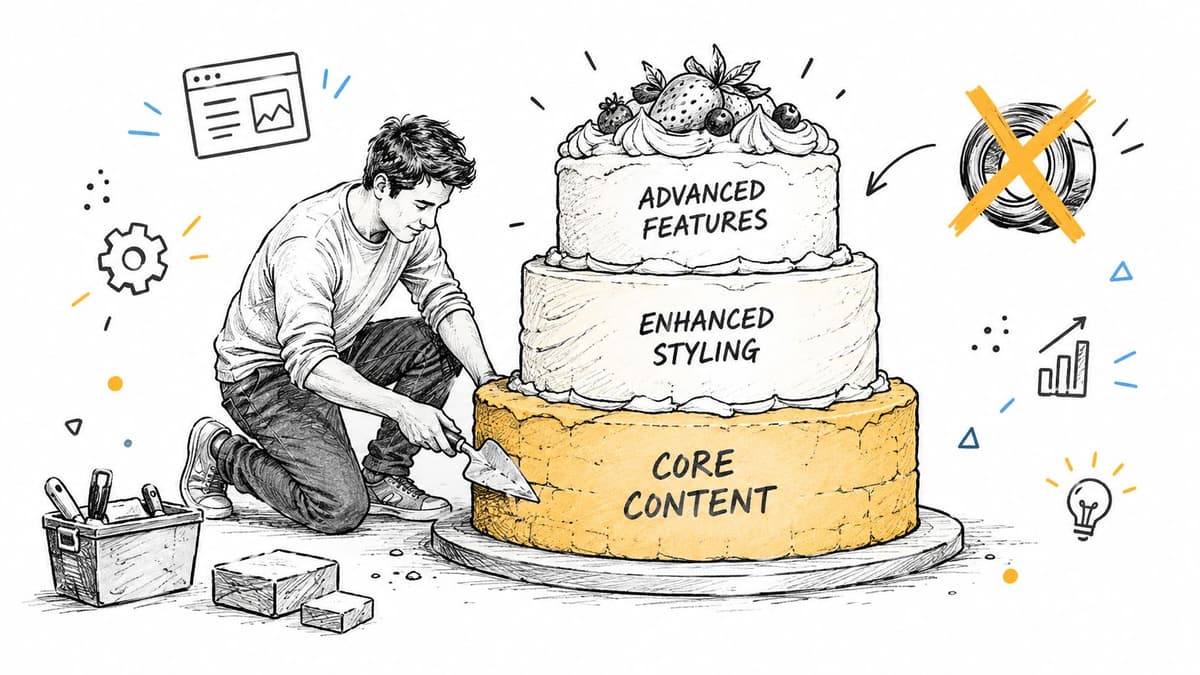
The distinction is simple. A patch targets the symptom in one environment. Progressive enhancement starts with a reliable core experience, then adds richer behavior only when the browser confirms it can support that behavior.
#Use a quick patch when the buying path is blocked
If a CSS rule hides the checkout button on a high-value segment, restore visibility first. If an app script breaks the cart drawer, provide a direct cart link or disable the enhancement while the vendor investigates. If a payment element fails to render, make sure the standard checkout route remains available.
These fixes aren't elegant, but they protect the transaction. Document them as temporary measures, attach the reproduction details, and set a follow-up owner. A temporary workaround becomes dangerous when nobody knows it exists.
#Build the baseline before the enhancement
Core content should remain accessible without advanced JavaScript. Product title, price, variants, quantity, add-to-cart, cart access, shipping information, and checkout must work before you add animation, predictive search, sticky behavior, personalization, or device integrations.
Use feature detection, not browser sniffing. Check whether the needed API, CSS capability, or interaction exists, then choose the enhanced path or fallback. Browser names are weak proxies because different versions and devices can behave differently, and some browsers share an engine while exposing different capabilities.
For unsupported APIs, design a meaningful fallback. With Web Serial, that might mean manual entry, a downloadable configuration, a supported desktop workflow, or a clear message that explains the required environment. Don't display a control that appears usable and fails only after the customer has invested time in the flow.
#Decide what to fix now
Use these decision rules:
- Fix now: Checkout, payment, cart, variant selection, account access, and any interaction that prevents a purchase.
- Fix next: Navigation, search, product media, shipping calculators, discount controls, and mobile layout issues that create friction.
- Enhance progressively: Animations, advanced positioning, optional personalization, rich device APIs, and visual effects that don't affect the core transaction.
- Monitor: Low-traffic browser-specific polish issues, provided the primary buying path remains usable.
Polyfills can help when a missing feature has a stable, lightweight substitute and the fallback behavior is well understood. They can hurt when they add weight, introduce another dependency, or emulate a capability poorly. For a Shopify store, a simpler interaction often beats a large compatibility layer.
The revenue-weighted matrix from earlier gives this strategy a practical order. If a feature fails in a segment that generates meaningful orders and blocks checkout, build the fallback immediately. If it affects a decorative transition in a low-value environment, let the browser use the baseline experience.
#Prioritize Prevent and Keep Compatibility From Costing You Again
Compatibility work becomes expensive when every incident starts from zero. Give each issue a priority based on affected revenue, distance from checkout, customer severity, and fix effort.
A payment failure on a major browser segment outranks a misaligned footer. A broken variant selector outranks a delayed animation. A minor Firefox spacing issue may still matter for standards quality, but it shouldn't displace a mobile cart blocker.
#Use a lightweight operating routine
Assign these checks to a person, not a vague team:
- Weekly: Review conversion, checkout completion, and error reports by browser and device segment.
- Before a launch: Test the revenue-weighted matrix against home, collection, product, cart, checkout entry, account, and subscription flows.
- After a theme update: Re-run the same matrix before publishing broadly.
- After an app change: Test the pages where the app injects scripts, styles, widgets, or payment elements.
- After a regression: Preserve the failing environment in the test suite and keep the original reproduction steps attached to the ticket.
Use performance benchmarking alongside compatibility monitoring. A page can technically work while slow scripts, delayed fonts, or a heavy fallback make the buying experience deteriorate on one device class.
For a deeper technical reference, keep this cross browser compatibility fix available for developers or agencies handling the implementation. The important operational habit is to connect every fix to a customer path and a measurable store segment.
Arlo can interpret Shopify sales, traffic, customer, and product signals in a concise weekly report, including prioritized actions tied to urgency and dollar impact. Visit Arlo to see how it can help your team spot browser-segment conversion gaps and decide what to fix next.