
How to Create a Facebook Shop for Your Shopify Store
By Arthur Falcone · Founder of Arlo
You've connected Shopify to Meta, selected a catalog, and watched the products populate. Then a customer clicks an item and lands on the wrong variant, sees an outdated availability status, or discovers that checkout isn't supported in their market. That's the frustrating reality of trying to create a Facebook Shop for a Shopify store. The storefront is easy to assemble. The difficult work is validating permissions, catalog health, checkout eligibility, and the customer journey before you send traffic.
Facebook Shops was introduced on May 19, 2020 as a free way for businesses to create a single online store across Facebook and Instagram, with rollout expanding over the following months. By March 2021, Facebook reported 1 million active Shops and more than 250 million people interacting with Shops each month in its announcement about the product's launch and development (Facebook introduces Shops). The speed of that rollout is useful context, but it also explains the platform's main weakness for operators: Meta built Shops for low-friction adoption, not for the control of a mature ecommerce platform.
#Table of Contents
- Prerequisites and Eligibility Checks Before You Start
- Setting Up Business Manager and Commerce Manager
- Connecting and Syncing Your Shopify Product Catalog
- Configuring Checkout Methods and Commerce Policies
- Verifying and Launching Your Facebook Shop
- Troubleshooting Common Facebook Shop Errors
#Prerequisites and Eligibility Checks Before You Start
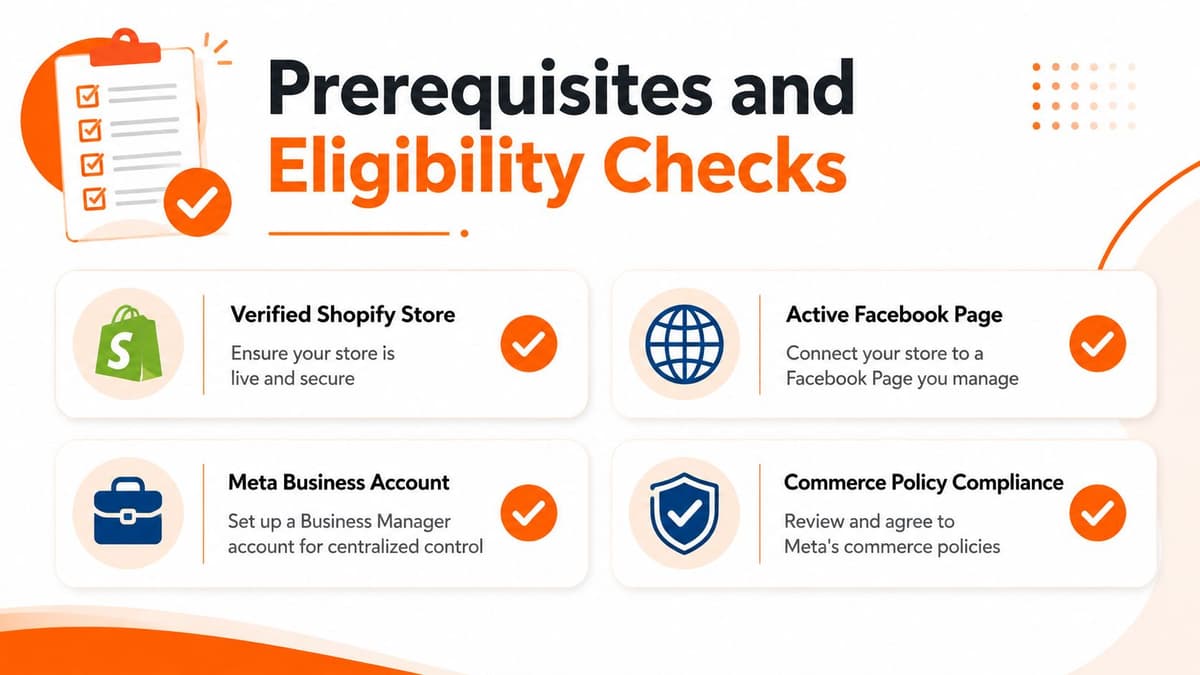
A Shopify store can look ready while Meta still blocks the connection. Before opening Commerce Manager, confirm that the storefront is live, the business assets belong to the right Meta account, and the products can pass review. Meta's setup flow expects a connected Facebook Page or Instagram professional account, suitable Business Manager access, a product catalog, and a business website (Meta's Shop setup requirements).
#Run the go or no-go checks first
Meta Shops requires businesses to meet its Commerce Eligibility Requirements and operate from a supported country. The connected Page or Instagram professional account must also follow Meta's Terms of Service, Commercial Terms, Community Standards, and commerce rules. Review the current requirements before configuring the Shopify channel, since eligibility and checkout availability can differ by market (Meta's Commerce Eligibility Requirements).
Use this checklist before working on storefront presentation:
- Store readiness: Confirm the Shopify storefront is live, product prices and inventory are current, and each item leads to a working product page.
- Business identity: Keep the legal or operating business details consistent across Shopify, Meta Business Manager, and Commerce Manager.
- Page access: Verify admin access to the Facebook Page. An editor or advertising role may not be enough for setup or approval.
- Instagram connection: If Instagram Shopping is part of the plan, use a professional account linked to the intended Facebook Page.
- Category review: Check every product against Meta's commerce rules. Products accepted on Shopify can still fail Meta review because the policy covers buying, selling, and trading across Facebook, Instagram, WhatsApp, Messenger, Marketplace, and Shops (Meta Commerce Policies).
#Confirm permissions inside Business Manager
Permission problems often appear as Shopify or catalog errors. A catalog may show in Shopify but remain unavailable in Commerce Manager when the person completing setup lacks catalog permission or business admin access. Have the Business Manager admin verify access to the Page, Instagram account, catalog, and related business assets before starting.
Check the Shopify plan and the Facebook and Instagram sales channel as well. Shopify can guide installation, but it cannot change Meta's market rules or remove account restrictions. If Meta has restricted the Page, business account, or catalog, resolve that issue before submitting the Shop again. Repeated connection attempts rarely fix an account-level block and can make it harder to identify the original cause.
Practical rule: Do not build the Shop until you can name the exact business account, Page, Instagram account, catalog, and person responsible for approval.
#Setting Up Business Manager and Commerce Manager
The Shopify connection can fail before any product sync begins if Meta's ownership structure is unclear. Duplicate Business Manager accounts, similarly named catalogs, and former agency assets make it difficult to identify which business should own the Shop and receive Shopify's connection.
#Establish the asset structure
Sign in with the Meta account that should own the store. In Business Manager, verify the correct business account, add the primary Facebook Page, and connect the intended professional Instagram account. Assign the person handling setup the required admin and catalog permissions. The Shop also needs a linked Page or Instagram business account, catalog access, admin access, and a business website.
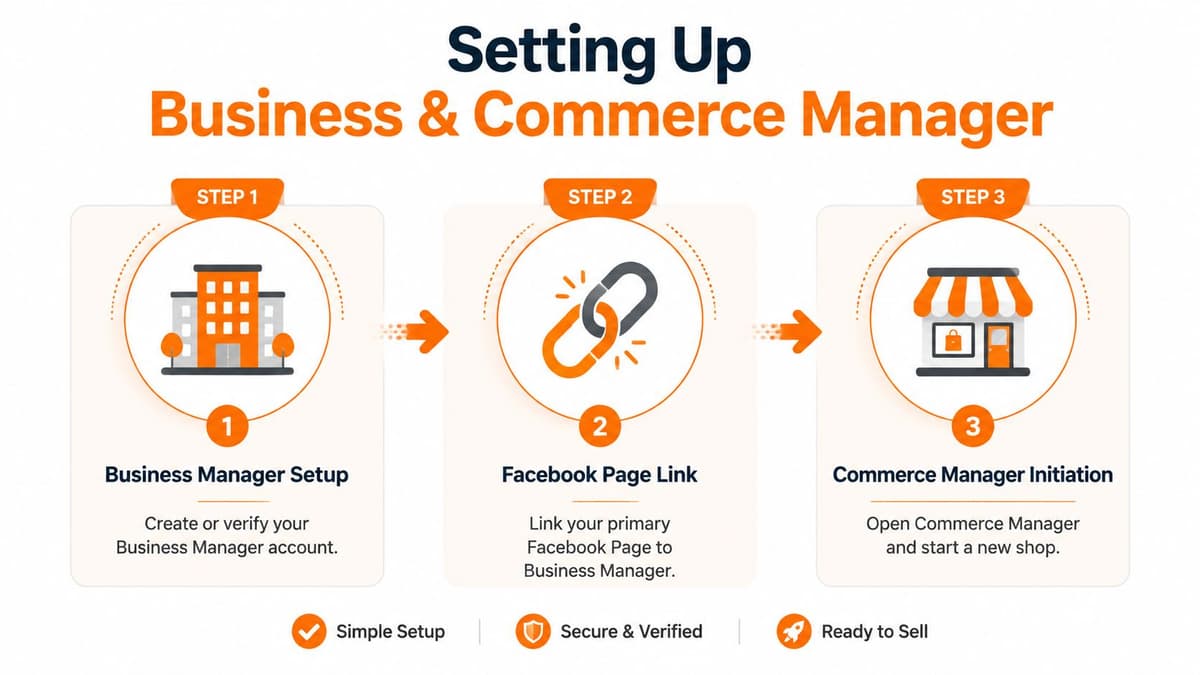
Open Commerce Manager through Meta Business Suite or Meta's commerce tools. Choose to create or enter a Shop, then select the business account that should own the storefront. If several accounts or catalogs appear, check their ownership and purpose before selecting one. Choosing the first available option can attach the Shop to an account Shopify should not use.
#Follow the Commerce Manager sequence
Meta's setup generally follows this order:
- Create or select a commerce account. Use the business account that owns the brand, rather than an employee's temporary structure.
- Choose the checkout destination. Select your Shopify website, messaging, or on-Facebook and Instagram checkout if Meta offers that option for the business.
- Select the Business Manager account. Confirm the legal and operating entity before continuing.
- Attach a catalog. Choose the Shopify catalog you intend to maintain, or create a product catalog if none exists.
- Configure shipping and returns. Enter the customer-facing policies required for review.
- Review the merchant agreement. Accept the applicable terms, then submit the Shop for review.
Meta can change the labels and order of these screens, but the dependencies remain. A greyed-out Page or catalog commonly indicates missing permissions, ownership by another business, or incompatibility with the selected checkout method. A Shop may also appear connected while approval remains blocked, so check the status details rather than assuming the connection succeeded.
Account architecture matters more than storefront styling. A polished Shop attached to the wrong catalog remains an operational liability.
Keep the business entity, Page, catalog, and Shopify connection aligned. Ownership changes later may require asset reassignment, support contact, and another review. Resolve those decisions before the catalog starts syncing.
#Connecting and Syncing Your Shopify Product Catalog
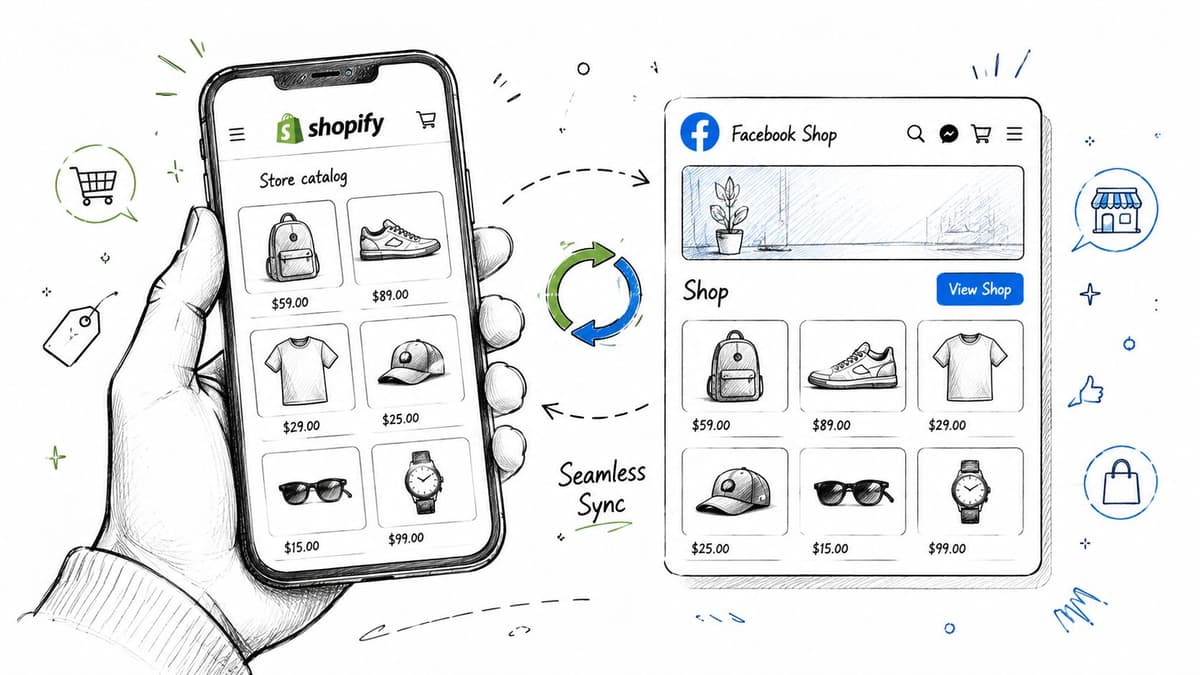
Your Facebook Shop is only as reliable as the catalog behind it. The practical route for most Shopify operators is to install Meta's Facebook and Instagram sales channel in Shopify, connect the correct Meta business assets, and let Shopify act as the product source rather than maintaining a second manual catalog.
#Make Shopify the source of truth
In Shopify, open the sales channel area and install or configure Facebook and Instagram by Meta. Sign in with the Meta account that owns the intended Business Manager, select the correct Page and catalog, and choose which products or collections should be available. Avoid creating a fresh catalog automatically if an established catalog already powers your ads, product tags, or reporting. Two catalogs with overlapping products make troubleshooting much harder.
Review the fields that Shopify sends across:
- Product title and description: Keep the naming clear and remove website-specific instructions that won't make sense inside Facebook or Instagram.
- Images: Use strong primary product photography and inspect how images crop in mobile placements. A product that looks balanced on a Shopify product page may lose important detail in a Shop tile.
- Price and availability: Check that inventory and price updates reflect the Shopify source. A mismatch can create customer frustration even when the product page itself is correct.
- Variants: Make sure size, color, and other options are configured as real Shopify variants where possible. Custom options that aren't represented consistently can produce incomplete or confusing selections in Meta.
- Collections: Map collections deliberately. A seasonal collection that includes unavailable items can make the storefront feel neglected even if the individual listings are valid.
For a broader operational view of keeping product availability accurate, use this guide to inventory optimization for ecommerce stores.
#Diagnose pending products instead of waiting
A product marked pending, rejected, or missing isn't necessarily a Shopify failure. Open Commerce Manager's catalog diagnostics and inspect the affected item, then compare the reported field with the Shopify product record. Typical fixes include completing missing product information, replacing a disallowed product, correcting a broken link, or resolving a variant with inconsistent availability.
The sync is also not a substitute for merchandising review. Shopify can transmit a large catalog successfully while exposing products with weak images, unclear titles, or poor collection placement. Review the customer-facing result in Facebook and Instagram, not only the connection status.
A short walkthrough can help you visualize the connection between the two systems:
After each material Shopify change, check both the source product and its Meta representation. Pay particular attention to price, inventory, product URL, and variant selection. Silent failures are more dangerous than obvious errors because they leave the Shop looking functional while weakening the path to purchase.
#Configuring Checkout Methods and Commerce Policies
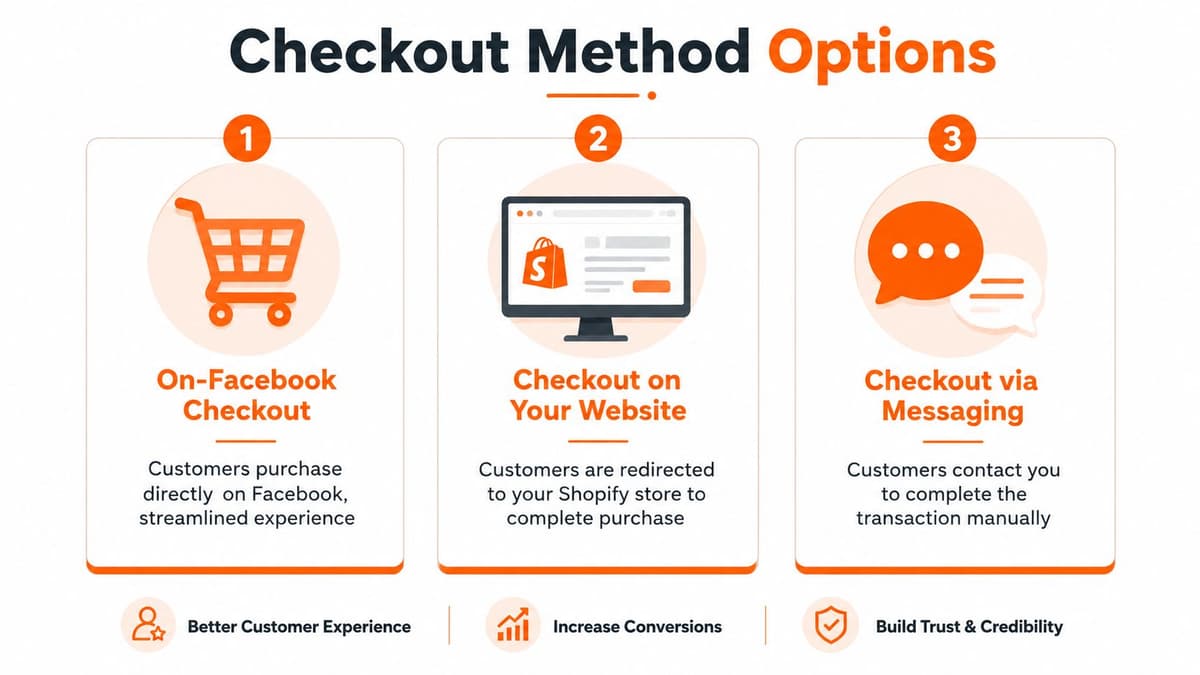
Checkout is the decision that determines where the customer completes the order and which operational system remains authoritative. Meta's workflow supports three broad destinations: on-Facebook and Instagram checkout where available, checkout on your website, and checkout through messaging. Those choices aren't interchangeable, and the right answer depends on market eligibility, customer support capacity, and how much of the transaction you want Shopify to own.
#Compare the three destinations
| Checkout destination | Operational advantage | Main trade-off |
|---|---|---|
| On-Facebook and Instagram | Keeps the purchase inside Meta where supported | Availability, payout, policy, and market requirements can be restrictive |
| Your Shopify website | Preserves Shopify's checkout, fulfillment, customer records, and store analytics | Adds a transition from the social platform to your site |
| Messaging | Lets shoppers ask questions before completing a transaction | Your team must manage payment and fulfillment manually or through its own process |
For most Shopify merchants, sending shoppers to the Shopify website is the more controllable default when native checkout isn't clearly available and approved. It keeps product, payment, tax, fulfillment, and customer data workflows closer to the system the team already operates. Native checkout can reduce friction, but it also introduces Meta-specific eligibility and operational requirements. Review payment economics alongside the broader payment gateway fee considerations for Shopify.
#Validate regional support before publishing
Market support is the trap many setup guides understate. Meta stated that, on April 24, 2024, existing US Shops without the on-Facebook-and-Instagram checkout method enabled would no longer be supported (Meta's checkout availability notice). That means a configuration that worked previously, or works for another merchant, can't be treated as a universal template.
Choose the destination only after confirming the country, account, and catalog qualify for it. Then enter shipping settings, return information, and customer service details accurately. A policy that appears in Commerce Manager but conflicts with the Shopify storefront creates avoidable support problems and can undermine review.
The cheapest checkout configuration is the one your team can operate consistently. A theoretically smoother native flow isn't useful if it isn't eligible in your market or doesn't reconcile with fulfillment.
Treat Meta's commerce policies as operating rules, not legal text to skim during submission. They govern the products you list, the claims you make, and the transactions you facilitate across Meta's commerce surfaces. Remove questionable products before review and keep product copy aligned with those rules.
#Verifying and Launching Your Facebook Shop
Approval isn't the finish line. It only confirms that Meta has accepted the Shop for the selected setup. Before promoting it, test the complete path from discovery to Shopify checkout and verify that the product a customer sees is the product your team can fulfill.
#Test the customer journey end to end
Use a structured launch pass:
- Browse as a customer. Open the Page Shop, collection, and product listing from a mobile device and confirm that images, titles, prices, and variants display correctly.
- Select a real variant. Test the exact combination of size, color, or other options that customers commonly choose.
- Follow checkout. Confirm the destination is the one selected in Commerce Manager and that the Shopify product page loads without a broken redirect.
- Check tracking. Verify that your UTM conventions and Meta tracking events identify the source, product, and campaign correctly. Don't assume attribution is working because a click appears in Ads Manager.
- Validate order operations. Confirm that an order placed through the selected route reaches Shopify or the intended operational queue, then check inventory and fulfillment handling.
- Review customer-facing policies. Inspect shipping, returns, contact details, and delivery language from the buyer's perspective.
#Merchandise for discovery, not completeness
A Shop shouldn't be a warehouse dump. Feature a focused set of products with clear collections, strong primary images, and a cover image that communicates the brand quickly. Group products by a useful buying decision, such as routine, use case, category, or season, rather than forcing shoppers to scan every item.
Select featured products based on margin, availability, reviews, and fulfillment reliability. A popular item that frequently goes unavailable can create more disappointment than demand. Refresh collections when inventory or seasonal priorities change, then inspect the published result after every update.
For promotion, pair the Shop with a deliberate campaign plan and consult these actionable Facebook Ads tips from Polaris Marketing Solutions. Your ad and product-page language should match, so shoppers don't see one promise in the creative and another on the Shopify landing page. This guide to Facebook ad copywriting can help tighten that message alignment.
Run the launch checklist again after publishing. Meta can accept the Shop while an individual product, variant, or destination still has a separate issue. Keep the first traffic controlled, watch the funnel, and fix broken paths before scaling spend.
#Troubleshooting Common Facebook Shop Errors
A published Shop can still fail commercially. The assumption that “approved” means “healthy” is wrong. Commerce Manager, Shopify, and Meta's tracking layer can each report a different version of reality.
#Product missing or showing old information
Start with the Shopify product record, then inspect the connected catalog and its diagnostics. Confirm the product is active, assigned to the intended sales channel, and represented in the correct catalog. If the item is pending or rejected, fix the named field rather than repeatedly reconnecting the entire account. Rebuilding the connection can create duplicate catalogs without correcting the original data problem.
#Checkout unavailable or redirecting incorrectly
Check the selected checkout destination, country eligibility, and product availability. If your market doesn't support the chosen method, switch to the eligible website or messaging route and test it from a customer account. The April 24, 2024 US change described earlier is a reminder that Meta can retire support for a configuration even when the Shop itself remains visible.
#Shop rejected or suspended
Read the policy or eligibility notice at the business, Page, catalog, and product levels. Remove or correct the affected listings, review claims in titles and descriptions, and submit an appeal only after the underlying issue is addressed. Meta treats Shops as a regulated commerce channel under its commerce policies, not as a casual social catalog.
#Sales missing from Shopify analytics
Compare Shopify orders, Meta events, UTMs, and the actual checkout destination. Website checkout should resolve to the intended product URL and preserve the tracking parameters your analytics setup expects. Messaging transactions may require manual reconciliation, while native Meta checkout can follow a different order and payout workflow. Keep a simple daily comparison until the numbers consistently reconcile.
Use Commerce Manager alerts and catalog diagnostics as an operating queue. When support is slow, capture item IDs, screenshots, timestamps, affected URLs, and the exact error text before opening a case. That evidence gives support a reproducible problem instead of a vague report that “Facebook Shop isn't working.”
Arlo helps Shopify merchants turn scattered sales, traffic, customer, and product data into a concise weekly action plan through its AI-powered 20 Minute CMO report. Visit Arlo to see which revenue issues deserve attention first, from broken tracking and weak conversion paths to wasteful campaigns and inventory problems.